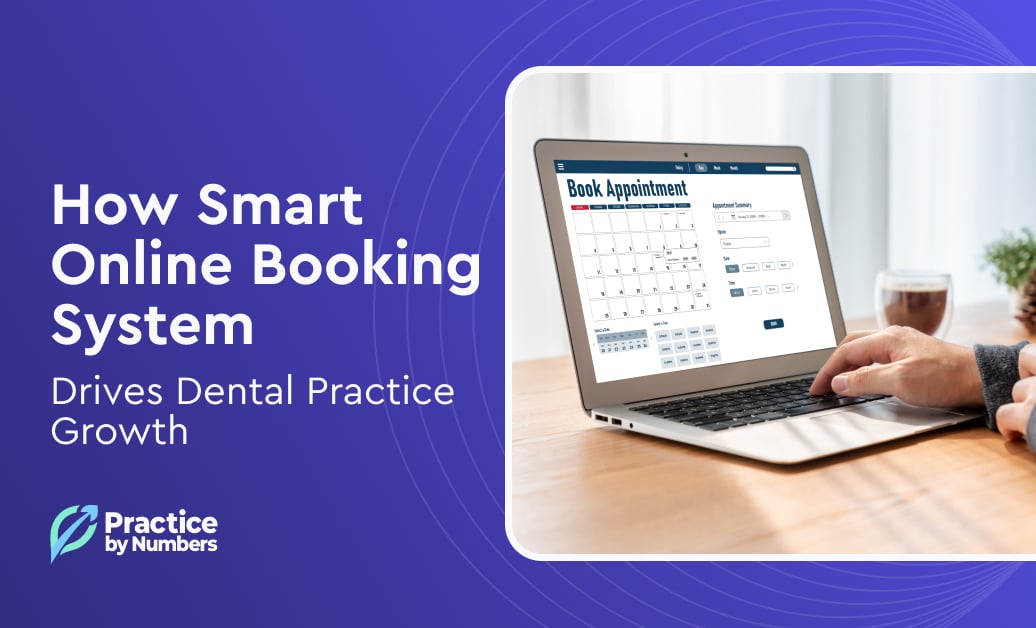
Dental online scheduling lets patients book an appointment themselves, any time, by choosing a real open slot on your calendar from your website, Google profile or a text link. The booking goes straight into your practice management system (PMS), and the patient gets an instant confirmation.
Patients book when it suits them. Zocdoc’s 2025 What Patients Want report found 28% of appointments on its platform were booked between 5 p.m. and 11 p.m., when most dental offices are closed. A 2023 Kyruus Health survey found 80% of consumers want self-service online scheduling.
- Let patients book available appointments 24/7 through your website, Google Business Profile, and shared booking links.
- Choose real-time scheduling with PMS integration instead of appointment request forms.
- Set booking rules for visit types, providers, appointment lengths, and availability.
- Use automated confirmations, reminders, and digital forms to simplify the booking experience.
- Make booking links visible across your website, social media, and patient communications.
- Track online bookings, after-hours appointments, no-shows, and booking completion rates to measure success.
How Online Scheduling Works
From the patient’s side, it takes about a minute:
- They click “Book online” on your website, Google profile or a text message.
- They choose a visit type, such as a new patient exam, cleaning or emergency.
- They pick a date and time from your real openings.
- They enter their name, phone, email, and insurance.
- They get a confirmation by text or email, often with a link to digital forms.
From your side, the appointment appears in your PMS calendar, matched to an existing patient or set up as a new one. Reminders go out automatically.
👉 Learn How to Streamline Dental Office Communication & Scheduling
Real-Time Booking vs. Appointment Request Forms
Many dental websites have a “Request an appointment” form. A request form only collects a preferred time, and staff still have to call back to book it.
Scheduling Features | Real-Time Online Booking | Appointment Request Form |
|---|---|---|
Patient picks an actual time | Yes | No, they suggest a preference |
Confirmed right away | Yes | No, staff must call back |
Syncs with your PMS | Yes | No, staff enter it manually |
Works after hours | Fully | Only collects the request |
Risk of losing the patient | Low | Higher, if the callback is slow |
If your site only has a request form, a patient who books with a competitor overnight may never answer your callback.
Common Concerns and How to Handle Them
Concern | How to Handle It |
|---|---|
“We’ll get double-booked.” | Use software with real-time, two-way PMS sync. |
“Patients will book the wrong visit.” | Offer only a few clear visit types online and set fixed lengths for each. |
“New patients won’t give insurance details.” | Make insurance a required field for new patients and verify it before the visit. |
“We’ll lose control of the schedule.” | Choose which providers, hours and visit types are open online. Keep complex treatment for the front desk. |
“Older patients prefer the phone.” | Keep the phone option. Online booking is an extra choice alongside it. |
“Online bookings won’t show up.” | Send automatic confirmations and reminders, and ask patients to confirm by text. |
“We’ll get fake or duplicate bookings.” | Require a phone number, review new bookings each morning and use tools that flag duplicates. |
Set Up Online Scheduling in 6 Steps
- Pick software that syncs with your PMS. Confirm it supports your PMS version and writes appointments back in real time.
- Choose your online visit types. Start with new patient exams, cleanings and emergencies.
- Set your rules. Visit lengths, which providers are bookable, how far ahead patients can book, and a minimum lead time, such as 2 hours.
- Hold time for new patients. Reserve new patient blocks so first visits are available within a week. Our scheduling template guide has sample layouts.
- Connect confirmations, reminders, and forms. Send intake forms with the confirmation so paperwork is done before the visit.
- Sign a business associate agreement (BAA). The vendor will handle patient data, so HIPAA applies.
Where to Put Your Booking Link
Put the link everywhere patients look for you:
- Website: a “Book online” button in the header and on every service page.
- Google Business Profile: add your booking link. Some scheduling tools also support Reserve with Google, which adds a booking button to your listing.
- Social media: in your Facebook and Instagram bios.
- Recall and reactivation messages: a direct booking link in every text and email.
- Missed-call text-back: “Sorry we missed you. You can book here: [link].”
- In the office: a QR code at checkout for the next visit.
👉 See How Patient Relationship Management Boosts Practice Revenue
Make the Booking Page Easy to Finish
Small details decide whether patients complete a booking:
- Mobile first. Most patients book on their phones.
- Plain visit names. “New patient exam and cleaning” is clearer than internal codes.
- Few fields. Ask only for what you need to book.
- Show openings soon. If the first new patient opening is a month away, many patients will leave the page.
- List accepted insurance near the booking button.
- Clear confirmation. Include the date, time, address, parking tips and what to bring.
Tell Patients You Offer Online Booking
Patients won’t use it if they don’t know it’s there:
- Mention it in voicemail: “You can also book anytime at [website].”
- Add it to appointment reminders and email signatures.
- Ask the front desk to mention it at checkout.
- Post about it on social media when you launch.
Measure the Results
Metric | What to watch |
|---|---|
Share of appointments booked online | Rising over time |
Bookings outside office hours | Demand you’d miss without online booking |
New patients booked online | Whether new patients use it |
Booking page completion | How many visitors finish booking |
No-show rate for online bookings | Similar to or lower than phone bookings |
Front desk booking calls | Falling over time |
For a full comparison of scheduling tools, features and pricing, see our complete guide to dental appointment scheduling software.
Turn Online Booking Into More Filled Appointments
Dental online scheduling gives patients the flexibility to book when it’s convenient while helping your team spend less time managing appointment requests. With real-time availability, clear booking options, and automated confirmations, you can make scheduling easier without losing control of your calendar.
Start by choosing a solution that integrates with your PMS, setting clear booking rules, and making your booking link accessible wherever patients find your practice.
With Practice by Numbers, you can offer online booking alongside automated reminders and waitlists, helping patients schedule appointments while your team manages availability and fills open slots.